

Help Center
Review and deploy ads: approve, send to Meta or Google, and manage
Ads lists the rendered ads that are ready to review, launch or archive. Open it from Create > Ads. Each card is one ad.
Problem and intended user
A media buyer (the person who runs your paid ads) needs to check each new ad before it spends money. A wrong audience or budget wastes ad spend. A creative strategist (the person who plans and makes ad creatives) sees which ads are ready.
Current workflow
The media buyer takes the finished creative from a design tool or an agency, uploads it to Meta Ads Manager or Google Ads, builds the campaign and audience by hand, and copies the ad text across.
Prerequisites
- Ad: In Creatives, choose Create Ad on a Creative Set. See Creatives.
- Integration, to deploy: Connect Meta Ads or Google Ads. A Meta deploy also needs a Facebook Page and an Instagram identity, set up as in Meta Ads. See Meta Ads and Google Ads. Create Ad, Approve and Reject work without a connection. Only Deploy needs one.
- Ad budget, to create a campaign when you deploy: Set an ad budget for each platform. Open Settings > Integrations, open the Meta Ads or Google Ads dialog, and select Set up ad budget. The button shows only after the platform is connected.
How Commander works
Fixed checks score a generated ad. The score is the Quality Gate. Some checks use AI to inspect the finished image. Commander can approve an ad on its own when the score is high enough. It holds an ad back as Rejected by Quality Gate when the score is too low, so that ad never reaches review. AI can write the copy and make the image. On deploy, a readiness check with fixed rules runs, then Commander sends the ad to your Meta or Google account. When a Meta deploy dialog opens, Commander reads the campaigns, ad sets and ad counts of your Meta ad account. Fixed rules decide which ones you can pick. When you create a campaign or an ad group in the Google dialog, Commander creates it in your Google Ads account at once, paused, before you choose Deploy. Commander never creates an ad group by itself at Deploy: every Search, Display or Demand Gen ad goes into an ad group that you choose or create in the dialog.
You approve or reject each ad that needs review, read the readiness check, choose Deploy, and confirm each bulk action and archive.
To publish creatives you kept in a creative batch, or images from your Library, as Meta ads (Single image, Multi-aspect or Carousel) or as Google ads (Performance Max, Demand Gen Image, Demand Gen Carousel or Responsive Display Ad) in one guided flow, use the Deployment Wizard instead. See Deployment Wizard. To publish to Google, start with Choose a Google ad format in the Deployment Wizard.
Find an ad
- Platform, the first field under Filters and set to All platforms at first, shows the ads for Meta or Google. Each choice shows how many ads it holds under your other filters, 0 included.
- Campaign, set to All campaigns at first, shows one campaign's ads. Type in Search campaigns… to find one by name. It lists only campaigns with ads, each with its number of ads. All campaigns shows how many ads the list holds under your other filters.
- Ad Container, set to All containers at first, shows the ads in one ad set, ad group or asset group. Type a name or an ID in Search ad containers… to find one. Each container shows its number of ads, and All containers shows how many ads the list holds under your other filters. A container's name stays in the list after it is removed in the ad platform. If Commander cannot get a name, the list shows the container type and its ad's brief name, for example Ad set · Summer sale.
- Campaign and Ad Container narrow each other. Choose a campaign, and the container list shows only that campaign's containers. Choose a container, and the campaign list shows only its campaign.
- Status, set to All statuses at first, shows the ads with one status, such as Needs Review. Each status shows how many ads it holds under your other filters, 0 included, and All statuses shows their total. Picking a status does not change these numbers.
- Clear filters appears next to Status once a filter is set. Choose it to remove every filter, the Platform one included, and see all ads. Your sort order stays.
- Sort orders the list by Created, Updated or Status. The arrow next to it flips the direction.
- A From Set label appears when you arrive from a Creative Set in Creatives. Choose Clear Set filter to see all ads.
Approve or reject
On a Needs Review card, choose Approve or Reject. Approve moves the ad to Ready to Deploy. Reject asks for an optional reason. Choose Confirm Reject to finish. The ad becomes Stopped.
Deploy one ad
WARNING
Deploying sends the ad to Meta or Google. Check the audience, the placements and the budget before you choose Deploy.
On a Ready to Deploy card, choose Deploy to Meta or Deploy to Google. The ad detail names it Deploy to Meta Ads or Deploy to Google Ads. A failed ad shows Retry Deploy.
In Deploy to campaign, choose where the ad goes.
Meta: Choose New Campaign or Existing Campaign. Existing campaigns are listed in a table with each campaign's objective, status, budget, ad sets and ads. Ads counts every ad in the campaign's ad sets, paused ads included. Campaigns are marked Built in Commander or Imported: imported campaigns come from your Meta ad account. The table lists Active campaigns first, then Paused and Draft ones. Select a column heading to sort by it, select it again to reverse the order, and a third time to return to the default order. On a phone, use the Sort campaigns list instead. When both kinds are present, All, Built in Commander and Imported narrow the list by source. When some campaigns budget per campaign and others per ad set, Budget with All, Campaign and Ad set narrows it by budget type. Search campaigns… finds a campaign by name, objective or status. A paused imported campaign notes that the ad won't run until you resume it in Ads Manager. When you pick a campaign, the table and the choice between New Campaign and Existing Campaign give way to a card. The card shows the campaign's name, whether it is Built in Commander or Imported, and its objective, status, budget, ad sets and ads. Select Change campaign to see the table again. Refresh from Meta, next to the Existing Campaign choice, reads your campaigns and ad sets from Meta again now; you can use it once a minute. New Campaign opens the campaign form; Create campaign creates it on Meta, paused.
An ad with no brief, for example one made from a product or for your brand, takes the objective of the campaign you pick: the dialog says No brief: the ad takes the chosen campaign's objective., lists campaigns of every objective, and once you pick one shows what the ad deploys as, for example Traffic · Link clicks.
Choose New Ad Set or Existing Ad Set. Existing ad sets are listed in a table with each ad set's status, how many ads it holds out of Meta's 50, its learning state (Learning, Exited learning or Learning limited) and its budget. Meta's 50 counts every ad in the ad set that is not archived or deleted, paused ads included. The table lists ad sets you can pick first, Active before Paused. Select a column heading to sort by it, select it again to reverse the order, and a third time to return to the default order. When both kinds are present, All, Active and Paused narrow the list by status. Search ad sets… finds an ad set by name, status or learning state. Select an ad set to see its details under the list: its status, how many ads it holds out of Meta's 50, its learning state, its budget, its Schedule and its own targeting. Selecting a row only shows these details; select Use this ad set to pick it. A full ad set and a dynamic creative ad set are listed dimmed with the reason under their name. You can select them to see why, but Use this ad set stays off. Adding an ad to an ad set that already holds ads restarts Meta's learning phase; the dialog says so. New Ad Set asks for a name, audience, locations and placements, a Schedule, the Age and Gender, and a daily budget when the campaign budgets per ad set. In a Built in Commander campaign, that daily budget comes out of your ad budget. At the top, the form shows a line such as "Commander Meta ad budget (all Commander campaigns): ... /day · ... unassigned": your daily ad budget, and the part of it that no Commander campaign or ad set holds yet. A daily budget above the unassigned amount shows "More than your Commander Meta ad budget has unassigned" in red next to the field, and Create ad set stays off until it fits. An ad budget with no daily budget set has no limit. Ad sets in an Imported campaign are not counted against your ad budget. Create ad set creates the ad set on Meta, paused. Under Schedule, Auto shows "Ad set starts immediately and runs continuously." and sets no start or end date. Custom sets a start date and an optional end date. The ad set runs from the start of the start date through the end of the end date in your Meta ad account's time zone. Age takes a minimum and a maximum from 18 to 65, and 65 means 65 and older. Gender has Female and Male boxes, and ticking both targets everyone. If the audience you picked is a saved audience from Meta, it sets its own age and gender: the form shows them and you cannot change them there. Create ad set stays off, with a message in red, when the start date is in the past, the end date is before the start date, the minimum age is above the maximum or no gender is ticked. When you use an existing ad set, the list gives way to a card, with Change ad set to pick another. The card shows the same details as the preview: the ad set's status, how many ads it holds out of Meta's 50, its learning state and its budget. Under them, Schedule shows the dates Meta holds for the ad set, for example Oct 3, 2026 – Oct 31, 2026, or Oct 31, 2026 – Ongoing when it has no end date. It reads Schedule not checked yet until Commander has read them. The card also lists the ad set's own targeting, which applies to your ad: its location, age and gender, audiences, detailed targeting and placements. A line the ad set does not set is left out, and placements read Automatic placements when it sets none.
Google: Choose New Campaign or Existing Campaign. Existing campaigns are listed in a table with each campaign’s campaign type, status and budget. The dialog opens on Existing Campaign with the table open and no campaign preselected: select a Commander campaign that fits the ad. You can also select a campaign imported from your Google Ads account, with the same campaign type as the ad. Campaigns are marked Built in Commander or Imported, and Commander picks no campaign for you, and never an imported one. When both kinds are present, All, Built in Commander and Imported narrow the list by source. Search campaigns… finds a campaign by name, type or status. Select a column heading to sort by it, select it again to reverse the order, and a third time to return to the default order. Inside an imported campaign, Commander adds the ad group you create or the asset group (Performance Max), or the ad alone when you pick an existing ad group, and does not change the campaign’s budget, bidding, locations or status. A paused imported campaign notes that the ad won’t run until you resume it in Google Ads. When you pick a campaign, the table and the choice between New Campaign and Existing Campaign give way to a card. The card shows the campaign’s name, whether it is Built in Commander or Imported, and its campaign type, status and budget. The card of a Commander Search, Display or Performance Max campaign also lists its Locations, or None set; a Demand Gen campaign has no Locations line, because its ad groups set the locations. The card also shows the campaign’s Schedule, such as "Apr 25, 2027 – Ongoing". A Commander campaign set to Auto reads "Starts when the ads go on – Ongoing". An imported campaign with no dates in Commander shows no Schedule. Select Change campaign to see the table again. Refresh from Google, in the bar with Target campaign type at the top of the dialog, reads the names, status and type of your Google campaigns again now. After you use it, the button shows how long to wait before you can use it again. While Commander reads them, the dialog shows "Refreshing data…" in place of the list. If the read fails, the dialog says "Couldn't check with Google. Showing what Commander last saw." New Campaign opens the campaign form, with the ad’s campaign type under Deploys to. Create campaign creates the campaign on Google, paused, before you choose Deploy, the same as on Meta. For an existing Performance Max campaign, the dialog does not show its business name, logos and sitelinks: Commander does not change them when you deploy. Commander writes no sitelinks of its own for a Performance Max ad: the sitelinks that go out are the campaign’s.
The campaign form asks for a Campaign name, an Objective (Awareness, Consideration, Conversion or Retention), a Strategy (Optimize or Experiment) and a Daily budget. On Meta it also asks for the Budget: Campaign budget (Meta spreads one daily budget across the ad sets) or Ad set budget (each ad set gets its own daily budget when you create it, so Daily budget is off and reads "Set per ad set"). The choice is fixed after you create the campaign. On Meta, the dialog shows the minimum daily budget for the objective under Daily budget, and the campaign has no age, gender or schedule: Meta keeps those on the ad set, so you set them in New Ad Set. On Google, the form shows Deploys to: with the ad’s campaign type, such as Performance Max. The new campaign takes that type and accepts only ads of that type. If the ad’s format has no Google campaign type, Create campaign is off and the dialog says "This ad's format has no Google campaign type. Re-create the creative as a text, image, carousel, video or asset-group set, or deploy it to Meta." The Google form has no Default Audience: the audience belongs to the ad group, or to the asset group for Performance Max. A Performance Max campaign form has Age and Gender. It also has Retail Performance Max, the same box as in a new campaign on the Campaigns page: Search, Display and Demand Gen do not show it. The box stays disabled until you link Merchant Center in Settings → Integrations → Google Ads. Search, Display and Demand Gen set age and gender on the ad group instead. For Search, you choose the network (Google Search, Search partners or Display network) before you create the campaign. For Search, Display and Performance Max, the form has Locations, where this campaign’s ads can show. Commander pre-fills it from the ad’s brief. Add or remove locations, or leave it empty. If you leave it empty, Google shows the ads in all countries. The campaign keeps these locations, and you can change them later in the campaign. Demand Gen has no Locations on the campaign: it sets location on each ad group. The Google form also has a Schedule. Auto shows "Campaign starts immediately and runs continuously." and sets no start or end date. Custom sets a start date and an optional end date. On Google, choose Create campaign. The schedule sets dates for a new campaign. It does not choose between live and paused. With a start date in the future, the ad shows Active in Commander while Meta or Google waits for that date. A new Performance Max campaign also has the Brand and sitelinks section of the Campaigns page: Business name, Logos and Sitelinks, with the same rules. Create campaign creates the campaign on Google with them. A sitelink row that is incomplete or breaks a rule stops Create campaign and shows its message under the field. See Campaigns.
Google ad group: For Search, Display and Demand Gen, an Ad group step follows the campaign. Choose New Ad Group or Existing Ad Group. Commander never creates an ad group by itself at Deploy: the ad goes into an existing ad group, or into one you create with New Ad Group before you choose Deploy. Existing Ad Group lists the chosen campaign's ad groups that are not removed in Google Ads, in a table you can search and sort, and nothing is preselected. The table has the columns Ad group, which shows the name and whether it is Built in Commander or Imported, Status and Ads. For a Search ad group, Ads reads like 2/3, because Google takes at most 3 active responsive search ads in one Search ad group. For Display and Demand Gen it is the number of ads. Select a row to preview it, then Use this ad group. The card of the ad group you picked shows its source, status and number of ads, and "This ad group's own targeting applies." It lists the ad group's Age and gender and Audience, which Commander reads from Google when you preview the row, and its Location when it is a Demand Gen ad group that sets its own. Otherwise the campaign's locations apply, as the campaign card shows. If Commander cannot read them, the dialog says "Couldn't read this ad group's targeting from Google.", and you can still use the ad group. When you deploy into an existing ad group, Commander adds only the ad: the ad group keeps its own name, location, audience, age and gender. New Ad Group asks for:
- Ad group name, pre-filled and editable. Commander refuses a name the campaign already uses and says so next to the field.
- Locations, for Demand Gen only. Commander pre-fills it from the locations of the ad's brief, not from the campaign's. If you leave it empty, Google can show the ads in all countries. In an imported Demand Gen campaign that sets the location for all its ad groups in Google Ads, Locations shows the campaign's locations, greyed out, and cannot be changed here. Commander sends no location for that ad group.
- Audience, optional. The top recommended audience is selected at first, only when Google can deliver ads to it and the ad group's campaign type can use it. When no audience fits, none is selected. A Search, Display or Demand Gen ad group takes an audience only through its list in Google Ads. In Browse all, an audience the ad group cannot take is dimmed with a line such as "Can't be added to a Display ad group", and you cannot pick it. If the form still holds one, a red message under Audience reads, for example, "This audience can't be added to a Display ad group. Pick another or remove it.", and Create ad group stays off until you pick another audience or remove it.
- Age and Gender, all checked at first, Unknown included. Keep at least one age range and one gender besides Unknown checked: with only Unknown left, the form says "Pick at least one age range besides Unknown." or "Pick at least one gender besides Unknown." under the boxes, and the button stays off until you check one more.
Create ad group creates the ad group on Google, paused, before you choose Deploy, and selects it. Deploy stays off until the ad has an ad group. If Google could not apply an audience, an age setting or a gender setting, the dialog shows a warning after it creates the ad group. The ad group still exists.
Google Performance Max: A Performance Max ad has no ad group step. An Asset group panel asks for an Asset group name, pre-filled, and an optional Audience, which becomes the asset group's audience signal. Google requires the asset group to be created together with the ad's assets, so Commander creates it when you choose Deploy. There is nothing to create beforehand. Deploy stays off while the Asset group name is empty.
Read the Deployment summary. On Meta it lists the pixel. For a Built in Commander campaign it also lists the bid strategy, the optimization goal and the billing event. On Meta, for an imported campaign it lists the campaign's objective, bid strategy and budget, which Commander does not change. On Google, the summary lists the Channel Type. For a Built in Commander campaign it also lists the Bid Strategy and the Optimization. For an imported campaign it lists the Channel Type and the campaign's Bid Strategy and Budget, as Commander last synced them. A value Commander has not stored is left out. The summary adds a line saying that the campaign's budget, bidding, locations and status stay as they are in Google Ads. A pixel marked Not connected links to Settings > General > Ad Deployment. A line says where the ad sends people: "This ad will link to «{page}»" with the page's path, such as
/pages/feel-the-difference, when the ad's page is live, or "This ad will link to the product page" with the product's address. A page you pick with Change shows its own path. An ad can have several landing pages, and it sends people to one of them, the ad's page. Choose Change to pick another one. The list holds the ad's live pages, each with the day it was created and Live, and Product page. The page you pick becomes the ad's page. Change shows when the ad has two or more live pages, or one live page it can switch to or away from. If the ad's page is not published yet, the line says "Your landing page {page} isn't live yet. Publish it to send this ad there." A page shared by a whole campaign has no Change unless the ad has two or more live pages of its own. For an ad made from a Google Demand Gen image set in Studio, the line reads "This ad will link to the Final URL set in Studio:" with that address, and the list offers Final URL set in Studio instead of Product page. A landing page you choose there, or make the ad's page from the landing page itself, wins over the set's Final URL. If your choice cannot be saved, the line reads "We couldn't save your choice." with the reason and "Pick again."Set the Audience and, on Meta, the Geolocation. For a Meta ad these sit inside the New Ad Set form. Pick at least one placement. A location is optional: with none, the new ad set uses the locations of the ad's brief, and in a Built in Commander campaign also the campaign's own locations. On Google, the audience belongs to the ad group (Audience in New Ad Group) or, for Performance Max, to the asset group (Audience signal). A Search campaign's networks can be chosen only before the campaign exists on Google: the network choice shows in New Campaign, and for a Commander campaign not yet on Google. Once the campaign exists on Google, a line says the networks were set when it was created and cannot be changed in Commander. The ad's brief only pre-fills locations and adds nothing to them. A Search, Display or Performance Max ad runs in the campaign's locations, which you set in Locations of the New Campaign form and can change later in the campaign. A Demand Gen ad runs in its ad group's locations, set in Locations of New Ad Group. When Commander sets the location and none is set, the readiness check shows the warning "This campaign has no location, so Google can show these ads in all countries." It shows for a Search, Display or Performance Max campaign with no location, never for Demand Gen, whose ad groups carry the location: the ad group card shows it, and the New Ad Group form warns when it has none. Deploying into an existing campaign other than Demand Gen leaves its locations alone and shows no warning. In an imported Demand Gen campaign that sets the location for all its ad groups, the ad runs in the campaign's locations. The warning does not block Deploy.
Read the readiness check. On Google, it runs once you select a campaign. On Meta, it runs once you select a campaign and an ad set. Under Cannot deploy, fix every issue first. Warnings do not block you. The dialog Deploy button stays disabled until you fix the issues. On Google, Deploy also stays off until you choose or create a campaign and, for Search, Display and Demand Gen, an ad group, as Meta needs an ad set. For Performance Max, it stays off while the Asset group name is empty.
Check the campaign status badge before you deploy. Then choose Deploy.
If Meta or Google is not connected, or the connection has expired, a red box reads Cannot deploy — N issues found. It lists a message such as "Connect your Meta ads account to publish this ad — once it's linked in Settings > Integrations, you're ready to go live." A short reason follows in brackets, and it varies. For a Google ad the message names Google. On Meta, the box can also list "A Facebook Page must be linked to your Meta ad account." and "An Instagram identity is required for Meta deployment." The link Open Settings → Integrations opens a new tab.
A single deploy goes live. For a Meta ad, Commander adds the ad to the ad set you chose and switches on the ad. It also switches on the ad set when Commander created it, and the campaign when it is a Built in Commander campaign still in DRAFT. A Built in Commander campaign you paused stays paused. Commander never switches on, pauses, edits or deletes an imported campaign. For a Google ad, everything you created in the dialog before Deploy is paused. Deploy adds the ad, together with the asset group for Performance Max, and switches on what Commander created. Into the ad group you chose or created, Commander adds only the ad. In an imported Google campaign, Commander adds only what you create there (an ad group before Deploy, or the Performance Max asset group at Deploy) and the ad. The ad can start spending as soon as the card shows Active. To create ads without serving them, use Select ads and choose Deploy paused.
If you created a campaign or ad set during this visit and it is still empty when you close the dialog without deploying, or after a deploy was refused, Commander asks whether to Delete it from Meta or Keep them. Anything that could not be deleted is listed; choose Close to leave. A campaign you delete this way stays on the Campaigns page as Built in Commander, archived. When it came from a draft you made before this visit, the draft stays as well, ready for a new deploy, beside the archived campaign.
On Google, the dialog asks the same when you close it without deploying after you created a campaign or an ad group in it. The prompt lists what this visit created on Google and that is still empty. Keep them closes the dialog and keeps them in your Google Ads account, paused. Delete removes them from your Google Ads account, ad groups first and then campaigns. They stay in Commander as Built in Commander: the campaign archived on the Campaigns page, the ad group deleted in Ad Containers. When the campaign came from a draft you made before this visit, the draft stays as well, ready for a new deploy. Anything that could not be deleted is listed with the reason, and the dialog closes when you choose Close. Commander offers only what it created during this visit, and only while it is still empty. While Google is still creating one, the dialog does not close. After you choose Deploy, closing never shows the prompt.
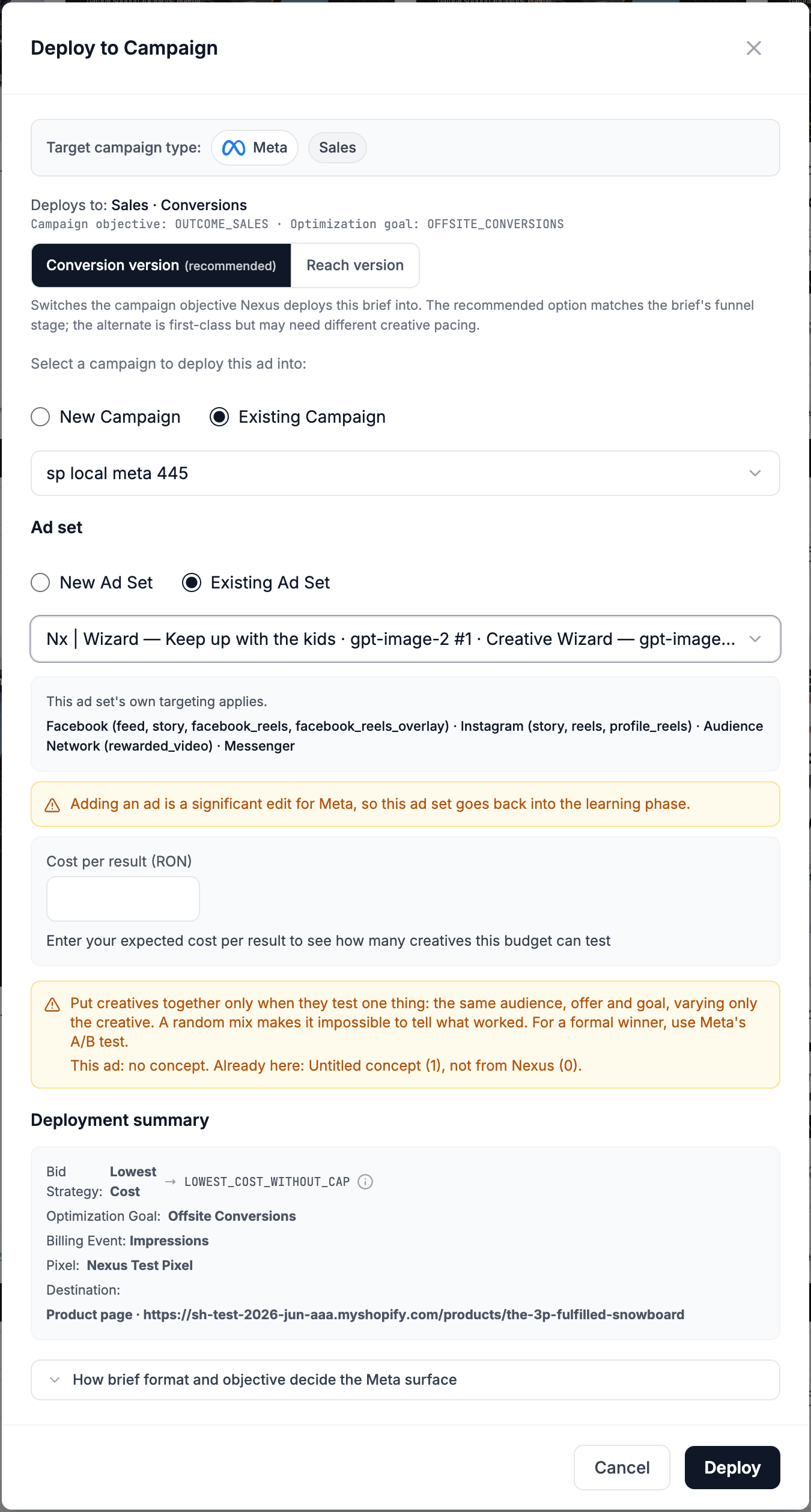
When Commander refuses the deploy, the dialog stays open. The reason shows in red above Cancel and Deploy. It can also appear in the readiness check under Cannot deploy. Fix the cause and choose Deploy again. Changing a choice in the dialog clears the reason.
When Commander accepts the deploy, the dialog closes and the card shows Uploading with a progress bar, the current stage and a percentage. Stages read Queued, Resolving credentials, Uploading media assets, Creating campaign, Resolving targeting, Creating ad set, Building creative, Creating ad, Activating and Finalizing. For a Meta ad deployed into a chosen ad set, the stage Creating ad set does not appear. After a failed attempt that Commander will retry, the stage reads Retrying deployment. The card then shows Active, or Deploy Failed. After a bulk Deploy paused it shows Paused. A Cancel deploy link appears in the ad detail after a short wait, but not while the ad is Queued.
Work with many ads
Choose Select ads, then tick the cards. You can mix platforms and statuses in one selection, up to 50 ads. A greyed card shows the reason under its checkbox. When you reach the limit, the reason reads "You can select up to 50 ads. Deselect one to choose another." The bar at the top reads "N ads selected". Choose Clear to empty the selection and Done to leave the mode.
Approve, Reject, Pause, Resume, Deploy and Archive are offered only when every selected ad is on one platform and has one status. Some statuses count as one: Ready to Deploy and Deploy Failed are the same status here, while Needs Review, Active and Paused each stand alone. When the selection mixes them, the bar leaves those buttons out and says why. For example: "Lifecycle actions need ads of one status (selected: awaiting review, active). You can still create a list." For a mix of platforms, it reads "Lifecycle actions need ads of one platform (selected: Meta, Google). You can still create a list." Deselect the ads that do not fit, and the buttons return.
Add to list is always offered when at least one ad is selected, whatever the mix. Its menu has New list…, which makes a creative list that you can share with a link, and your Recent lists, to add the ads to a list you already have. An ad with an active link shows a Shared tag. To see your lists, select Lists in the switch above the filters. See Share a creative, a folder or a list with a link and Lists and links.
| Selected status | Actions |
|---|---|
| Needs Review | Approve, Reject, Archive |
| Active | Pause, Archive |
| Paused | Resume, Archive |
| Ready to Deploy or Deploy Failed | Deploy, Archive |
Each action asks you to confirm. A Paused ad that never delivered offers Activate. A Paused ad that delivered before offers Resume. Activate switches on this ad, its ad set when Commander created it, and its campaign when it is a Built in Commander campaign still in DRAFT. A Built in Commander campaign you paused stays paused, so the ad does not spend until you resume the campaign. Activating starts spending. The single-ad confirm reads "This ad has never delivered. Activating switches on this ad, and its ad set when Commander created it, and the campaign when it is a Built in Commander draft, so it starts spending on Meta Ads. A paused Built in Commander campaign stays paused. In an imported campaign the ad runs only while its ad set and campaign are on in Ads Manager." A Google ad's confirm names Google Ads. On Google, Activate switches on the ad group when the deploy created it, or when Commander created it and no other Commander ad in it has run yet. An ad group you made in Google Ads, or one where another ad already ran, keeps its status. A Performance Max ad is its asset group, so Activate switches the asset group on. The bulk title reads "Activate N ads?".
Deploy opens Deploy N ads. Deploy takes up to 50 Meta ads, or up to 20 Google ads. With more than 20 Google ads selected, the bar leaves Deploy out and reads "Deploy takes up to 20 Google ads at a time. Deselect N to deploy, or archive and create lists as usual."
For Meta ads, each campaign group gets the same campaign and ad set choice as a single deploy. Ads with no brief form their own group. It offers Built in Commander and imported campaigns of any objective and reads No brief: these ads take the objective of the campaign you pick. Pick the campaign once; its ads sit in ad set rows. In a row, the ad set step (New Ad Set or Existing Ad Set) comes first, then the row's ads, one per line, each with a checkbox. In a row, New Ad Set lists the audiences of your store that are ready on Meta.
Tick ads and use Move N ads to. The list is grouped by campaign: Campaign 1: followed by the campaign name, with its ad sets and A new ad set…; each other campaign of the group, with its ad sets and A new ad set…; and, under Another campaign, A new campaign…. So the ads of one group can go to several campaigns. Each campaign of the group then shows as Campaign 1, Campaign 2 and so on, with its own campaign step and its own ad set rows. Undo split on a moved campaign sends its ads back to Campaign 1. Ads you move to A new campaign… need a campaign until you pick or create one.
An ad set that another row already uses shows "Already used above." and a Move the ads there button. When that row is in the same group, the button moves this row's ads into it. When it belongs to another group of the same batch, this row deploys into that same ad set too: two groups can share an ad set, and Meta's limit of 50 ads counts the ads of both groups.
While Commander checks Meta, the dialog shows a single "Refreshing data…" in place of the campaign groups. They return as they were. For Google ads, Refresh from Google sits above the campaign groups, works the same way and shows how long to wait before you can use it again. Deploy stays off while it reads.
Placements, locations and audience belong to each new ad set, which keeps the ads' brief interests only where every ad in the row shares them. Deploy stays off until every row has its ad set. If an ad set you picked can no longer take its ads when you choose Deploy, for example because it filled up or was archived on Meta, or its campaign can no longer be used, nothing is deployed. The dialog stays open and names the ad set and the reason. Pick another ad set or create one, or another campaign when the message asks for it, then choose Deploy again.
For Google ads, Deploy N ads opens at the same large size as it does for Meta ads. Under the Campaigns heading, a note reads "Google network and location targeting are set on the campaign, so these ads inherit them." Each campaign group shows its campaign as a card: Campaign, the campaign's name, its facts (whether it is Built in Commander or Imported, and its campaign type, status and budget), its Locations for a Commander Search, Display or Performance Max campaign and its Schedule (both as on the single deploy card) and Change campaign. Select Change campaign to see New Campaign and Existing Campaign. Existing Campaign lists the campaigns that can host the group's ads in a table you can search and sort: Commander campaigns, and campaigns imported from your Google Ads account with the same campaign type as the group's ads. When no campaign fits, the table reads "No compatible campaigns found." When Commander matched a campaign from the ads' brief, that campaign starts picked, and Let Commander choose returns to Commander's match. Commander never picks an imported campaign for you. Commander changes nothing else in the campaign. A paused imported campaign notes that the ad won't run until you resume it in Google Ads. Google campaigns have no default audience, and the batch has no audience choice: each new ad group and each Performance Max asset group picks its own, as described below. The batch has no location choice: a Search or Display ad group runs in its campaign's locations, and a Demand Gen ad group has its own Locations in the row's New Ad Group form. In an imported Demand Gen campaign that sets the location for all its ad groups, that field shows the campaign's locations, greyed out, and Commander sends none. New Campaign, and A new campaign… under Move N ads to, open the same new-campaign form as a single Google deploy. Create campaign creates the campaign in your Google Ads account at once, paused, before you choose Deploy, and the group's ads go into it. Commander pre-fills its Locations from the briefs of that group's ads, and a location Google cannot find is left out. Add or remove locations, or leave it empty. With Locations empty, Google shows each ad in all countries. If Google does not take a setting, the dialog says so under the group; the campaign exists anyway. In Deploy N ads, a warning names each Google Search, Display or Performance Max campaign with no location, for example "Spring sale has no location, so Google can show its ads in all countries." The warning does not block Deploy.
Once a Search, Display or Demand Gen group has its campaign, its ads sit in ad group rows, Ad group 1, Ad group 2 and so on. Under the ad group picker, a row lists its ads, each with a checkbox. In a row, pick Existing Ad Group to list the campaign's ad groups in the same table, with the same preview and Use this ad group, or New Ad Group and Create ad group to create one in your Google Ads account at once, paused, before you choose Deploy. When you pick an ad group, the picker gives way to the ad group card, with Change ad group to pick another. The ads of a row share its ad group. Commander never creates an ad group by itself at Deploy, so a row with no ad group has nowhere to deploy its ads: Deploy N ads stays off until every ad group row has an ad group, existing or created with New Ad Group. Tick ads and use Move N ads to to send them to another row of the campaign, to Another ad group… (a new row), or, under Another campaign, to another campaign of the group or A new campaign…. Undo split merges a split row back: its ads go into the first row. An ad group another row already uses shows "Already used above." and a Move the ads there button, and Use this ad group stays off for it. The button moves this row's ads into the row that uses it. When the ad group belongs to another group of the same batch, the button makes this row deploy into that ad group too: two groups can share an ad group, and Google's limit of 3 active responsive search ads counts the ads of both groups. A row's New Ad Group form has its own Audience (optional). Choose an audience picks one for that ad group, and Clear removes it. Each row keeps its own pick, so two rows can use different audiences. The list leaves out or greys the audiences the row's campaign type cannot take. Choose the audience before you select Create ad group: an ad group you created earlier keeps the audience it had. Create ad group waits while Commander reads the audience, and stays off, with a message, when the row's campaign type cannot take it. An existing ad group keeps its own audience. A campaign you create in Deploy N ads gets ad group rows too, like any existing campaign. Google takes at most 3 active responsive search ads in one Search ad group. That count includes the ads Commander already deployed there. A pick or a move that would pass it is refused with "A Search ad group can have at most 3 active responsive search ads.", followed by how many more ads that ad group has room for, and the ads stay where they were. Pick another ad group, or move some ads to another row. If an ad group you picked can no longer take its ads when you choose Deploy, for example because it was removed in Google Ads or a Search ad group would hold more than 3 active responsive search ads, nothing is deployed and the dialog says why. An ad group can also hold ads made outside Commander. When such a Search ad group is full as the ad deploys, nothing is created, and the ad goes back to Ready to Deploy with that reason.
Above the deploy button, a summary counts what the batch creates, for example "2 ads → 1 ad group across 1 campaign". Performance Max ads count as asset groups.
Performance Max has no ad groups: each ad gets its own asset group, created when you deploy, together with the ad’s assets (Google requires that). Under its campaign, each ad shows as Asset group 1, Asset group 2 and so on, with an Asset group name and Choose an audience signal. Deploy N ads stays off while an asset group’s name is empty. The audience signal is optional. Clear removes an asset group’s signal. While any asset group has no signal, a warning in Deploy N ads begins "Performance Max has no audience signal attached." It does not block Deploy. An existing Performance Max campaign shows no business name, logos or sitelinks here: Commander does not change them when you deploy.
The group When these go out has two choices.
| Choice | What the dialog says |
|---|---|
| Deploy paused (selected first) | "Fully created on the platform but not serving. Review them, then activate together." |
| Deploy live | "Starts delivering and spending as soon as each ad is created." |
The button reads Deploy paused (N) or Deploy live (N). A paused deploy leaves each ad as Paused on its card. Use Activate, not Resume, to switch it on.
On Meta, a Built in Commander campaign still in DRAFT is paused. It is on Meta already, or Create ad set creates it there, paused, with its first ad set. Deploy live switches it on, and Deploy paused leaves it paused. The summary above the buttons says "1 paused campaign will be switched on." under Deploy live, and "1 paused campaign stays paused." under Deploy paused. Under Deploy paused, when only such campaigns are not running yet, the daily budget line says that part "is in paused campaigns and starts when you activate these ads." On Google, a Built in Commander campaign still in DRAFT that already exists in your Google Ads account, paused, is treated the same way and the summary says the same: Deploy live switches it on, Deploy paused leaves it paused. Commander never switches on an imported Google campaign, so the summary does not count one.
A progress panel reads Deploying X of N ads, then Deployed X of N ads. While ads share a campaign, it says "Waiting to start the next ad — ads sharing a campaign are started one after another." Meta ads go out a few seconds apart. A failed ad is listed with its reason. Retry N failed reopens Deploy N ads. The panel's own text does not say paused or live.
If the connection is missing, Deploy N ads shows "None of these ads can deploy yet" with the reason. The deploy button (Deploy paused or Deploy live, matching your choice) stays disabled. Fix the connection in Settings > Integrations, then reopen the dialog.
Generate landing pages (N) also shows in the bulk bar. In Deploy N ads, the box Also generate a landing page makes one draft page for the batch, written from the first ad. It uses credits, and the dialog shows the cost once you tick the box. See Landing pages.
Manage one ad
The detail panel adds:
- Edit reopens the ad in Creatives until the ad is deployed. Choose Update Ad there to change the same ad.
- Duplicate in Lab is in the "…" menu in the card footer and in the "…" menu of the detail panel. It copies the ad into a new Creative Set and opens a copy of the creative in Creatives.
- Create landing page is a button in the card footer and in the detail panel. It opens the landing page wizard with the ad already chosen. The button reads Open landing page when the ad already has one. Generating a page uses credits, and the wizard shows the cost. See Landing pages.
- On the ad's own page, More actions offers Open landing page once the ad has a page. It opens the ad's page. Create another landing page sits next to it and opens the same wizard.
- An ad can have several landing pages. It sends people to one of them, the ad's page. Once the ad has a page, a "Landing pages · {n}" box appears under the Copy card. It has the same rows as the Landing page tab of Ad detail. The ad's page is listed first. Each row shows the page name, its status and when it was created. When the ad has many pages, the older drafts and archived pages fold behind Show N older drafts (or Show N older pages); Show fewer folds them again. Ad's page marks a page the ad's live link really opens. Ad's page (Commander) marks the ad's page when the ad opens another page. Another live page offers Make this the ad's page, which changes only Commander's pick and never the ad on Meta or Google, and another draft offers Review and publish. The ad's page, when it is still a draft, says it is not live yet and what the ad links to until you publish it, and offers Review and publish too. Create another page sits beside the box heading. When your store's plan uses credits, the cost appears next to Create another page. An ad not yet uploaded to Meta or Google has no link to compare, so its box shows no "links elsewhere" line and no Check again. On a live ad's page that the ad does not link to yet, How to point it here opens the steps for that ad's format.
- On the ad's own page, a Links card sits under the landing pages box and shows where the ad sends shoppers. For each link, it compares what Commander sent when it deployed the ad with the link as it is now in Meta Ads Manager or Google Ads. The texts below name Meta Ads Manager. A Google ad reads "Google Ads" in the same places.
- Commander reads the links right after it deploys the ad. The info icon beside the Links heading says when it last read them, and "Commander also checks once a day". Before the first read it says "Not read from Meta Ads Manager yet".
- Refresh reads the links again now. The button reads Refreshed for a moment after a read that worked. When a read fails, the card says why, for example "Commander could not read this ad just now. Try again in a moment."
- A link that matches shows its address once, with "Same in Meta Ads Manager" beside its name.
- A link that differs shows "Link changed in Meta Ads Manager" beside its name, then both values: Published by Commander and In Meta Ads Manager.
- In a carousel, each card has its own link. The ad's own link says "Each card in this ad has its own link, listed below". Cards whose link matches are listed under Cards. Cards whose link differs are listed under Link changed in Meta Ads Manager, and the ad's own link counts them, for example "2 links changed in Meta Ads Manager". A card added in Meta Ads Manager or Google Ads is listed under Card not published by Commander. A card removed there is not shown. Beside one of those two lists, the first list is headed Same in Meta Ads Manager when all its cards match.
- A link Commander cannot compare says why. "Not recorded" comes with "This ad was published before Commander kept a record of its links" or "Commander did not set this when it published the ad". "Not read from Meta Ads Manager yet" means Commander has not read that link. "Commander doesn't read this link from Meta Ads Manager yet" means Commander does not read that kind of link.
- A long list of cards or banners shows its first links and a button such as Show N more cards. On banners, the button adds "(N changed)" when links it hides differ.
- An archived ad keeps the links Commander read just before the archive. It has no Refresh, and the info icon says "Archived ads are not checked again".
- An ad not deployed yet shows "Not published yet" and the Link it will use.
- Share… in the same "…" menu, and Share in the detail panel, create a link that lets someone outside your team view the ad. See Share a creative, a folder or a list with a link.
- Create similar ad opens the batch setup with this ad as its starting point. See Clone an ad. Video ads do not have this button.
- Pause, Resume and Activate control a live ad.
- Archive or Archive Ad retires the ad. You can add a reason. A Needs Review or Ready to Deploy ad has no Archive button here. Use Select ads to archive it.
WARNING
Archiving a live ad deletes it on Meta or Google. You cannot undo this.
Exact output
Ad cards
| Status | Meaning |
|---|---|
| Needs Review | A new ad that waits for your decision. |
| Rejected by Quality Gate | Commander held the ad back because it failed its own checks. |
| Ready to Deploy | You approved the ad, or Commander did. Nothing is published yet. An ad made with Create Ad in Creatives starts here. |
| Uploading | Commander is sending the ad to the platform. A progress bar shows the stage. |
| Deploy Failed | The upload did not finish. The card shows the reason. |
| Active | The ad is switched on at the platform. |
| Paused | The ad is not delivering. A Paused ad that never delivered shows Activate. |
| Stopped | You rejected the ad, or it was stopped. The card shows the reason. |
| Completed | The ad finished its run. |
| Archived | You archived the ad. |
A red Rejected label means the ad platform disapproved the ad. The card shows the reason.
Ad detail panel
Click a card to open the detail panel. Depending on the ad, it shows the product, Campaign Info, Audience, Primary Copy, Alternative Copy and the Quality Gate score. Live ads also show their results.
What to do with it
| What you see | Decision or action | Owner |
|---|---|---|
| Needs Review | Read the ad. Choose Approve or Reject. | media buyer |
| Rejected by Quality Gate | Choose Duplicate in Lab or Create similar ad for a new version. | creative strategist |
| Ready to Deploy or Deploy Failed | Read the reason if any. Choose Deploy to Meta, Deploy to Google or Retry Deploy. | media buyer |
| Cannot deploy with "Connect your Meta ads account to publish this ad...", also for an expired connection, or with the Facebook Page or Instagram identity message | Open Settings > Integrations for the connection, the Facebook Page and the Instagram identity. | media buyer |
| A pixel marked Not connected | Open Settings > General > Ad Deployment for the pixel. | media buyer |
| The banner "Set up your Commander Meta ad budget before deploying ads." | Open Settings > Integrations, open the Meta Ads or Google Ads dialog, and select Set up ad budget. | media buyer |
| The warning "This campaign has no location, so Google can show these ads in all countries." | Deploy as is to show the ads in all countries. Or add the locations you want in Locations of the New Campaign form (for Demand Gen, in Locations of New Ad Group), or change the campaign's locations first. | media buyer |
| Deploy is off on a Google Search, Display or Demand Gen ad, or the message "Pick an ad group for this ad: an existing one, or create one with New Ad Group." | Choose Existing Ad Group, select a row and choose Use this ad group, or create one with New Ad Group and Create ad group. In Deploy N ads, do it for every ad group row. Commander does not create an ad group for you at Deploy. | media buyer |
| Deploy is off on a Performance Max ad | Fill in the Asset group name. | media buyer |
| Another Cannot deploy issue | Fix it in the dialog. | media buyer |
| A Meta ad set you cannot pick, or New Ad Set switched off | Read the reason under it. Pick another ad set, or choose New Ad Set when the campaign allows it. | media buyer |
| "The last deploy was refused:" with a reason on a Ready to Deploy card | Deploy the ad again and pick another ad set, or create one. | media buyer |
| "Couldn't check with Meta. Showing what Commander last saw." | Check the ad set in Ads Manager before you pick it, or close the dialog and open it again later. | media buyer |
| "Couldn't check with Google. Showing what Commander last saw." | Check the campaign in Google Ads before you pick it, or close the dialog and open it again later. | media buyer |
| Red Rejected label | Read the reason. Make a revised ad with Duplicate in Lab. The platform reviews outside Commander. | creative strategist |
| Active | Check results. Choose Pause or Archive. | media buyer |
| Paused | Choose Activate or Resume to switch the ad on, or Archive to retire it. | media buyer |
Expected value and measurement
This page can help you review ads in one place and send them to Meta or Google without rebuilding them. A live ad shows its own results in the detail panel. For all ads, open Performance > Ad performance and compare You spent, Platform-reported revenue and Matched revenue for your dates. See Ad performance.
You cannot isolate one ad's effect when audience, budget or offer change at the same time.
Limitations and exceptions
- Estimates: The Quality Gate score is automatic and can be wrong. The checks that use AI to inspect the image can be wrong too. So can AI copy and images. Read each ad before you deploy it, also when Commander approved it.
- New ad sets: Commander does not create ad sets in Advantage+ sales campaigns or special ad category campaigns. In a campaign that bids with a cost cap, bid cap or minimum ROAS, it creates one only when the campaign is Built in Commander and your ad budget still uses that same Cost Cap or Target ROAS setting. The new ad set then bids with the ad budget's Target CPA or Target ROAS (×). An imported campaign that bids this way gets no new ad set, because Commander does not know its bid. Pick one of the existing ad sets instead. The dialog says why under New Ad Set.
- Ad set budget and currency: In a campaign that budgets per ad set, a new ad set needs a daily budget in your Meta ad account's currency. A daily budget more than 20 times the campaign's other ad sets is refused; create it in Meta Ads Manager for a deliberate jump. Until Commander knows that currency, the budget field is off and reads "Connect your Meta ad account to set a budget.", and Commander creates no such ad set. In a Built in Commander campaign that bids with Cost Cap, Commander also creates no new ad set until it knows that currency, because the cost cap is an amount in that currency. Create ad set says why, in red, under the form. A Target ROAS campaign needs no currency. New Campaign waits for that currency too, because the campaign's daily budget is an amount in it: until then Create campaign creates nothing and says why, in red. So does Create ad set in a Built in Commander campaign that is not on Meta yet, whatever it bids.
- Campaign that budgets per ad set: A deploy into a Built in Commander campaign that sets its budget per ad set needs an ad set. Without one, Commander refuses before it starts and reads "This campaign sets its budget per ad set. Pick one of its ad sets, or create a new one with a daily budget." Pick one of its ad sets, or create a new one with a daily budget.
- Another budget change running: Your Commander Meta ad budget takes one budgeted change at a time. If another create or budget edit is still running, Create ad set and Create campaign refuse with "Another budget change is in progress. Try again in a moment." Try again after a moment.
- Imported campaigns: Commander adds your ads to an imported campaign's ad sets. It never switches on, pauses, edits or deletes the campaign, or an ad set it did not create. Manage them in Ads Manager.
- Archive on Meta: Archiving a Meta ad deletes that ad only. Its ad set stays in your Meta ad account in its current status, which can be active.
- Archive on Google: Archiving a Google ad in a Search, Display or Demand Gen ad group deletes that ad only. The ad group the ad was deployed into stays in Google Ads, active and empty, and serves nothing. The Archive confirmation says "The ad group stays in Google Ads; archive it in Ad Containers if you no longer need it." (for several ads, "Their ad groups stay in Google Ads; archive them in Ad Containers if you no longer need them."). Archive the ad group in Ad Containers if you no longer need it. This holds for every Google ad, including one deployed before ad groups were reused. A Performance Max ad is the exception: its asset group is the ad, so it is removed with the ad.
- Leftovers after a deploy: Once you choose Deploy, Commander does not offer to delete the campaign, ad set or ad group you created, so Retry Deploy can use them. Delete an unused one in Ads Manager or Google Ads. Before you deploy, closing Deploy N ads after you create a Google campaign or an ad group there offers Keep them or Delete, listing each campaign and ad group it made in your Google Ads account. Delete removes the ad groups first, then the campaigns.
- Text-only ads: A text-only ad has no Edit button and no Duplicate in Lab menu item.
- No ad budget: The top banner of Deploy to campaign reads "Set up your Commander Meta ad budget before deploying ads." (Google reads "Commander Google ad budget") with a Go to Integrations link. The banner does not switch Deploy off. The text "Set up your Commander Meta ad budget in Integrations first." (Google reads "Commander Google ad budget"), with a link on Integrations, shows only inside the new-campaign form. When an ad budget is set, the new-campaign form shows a line such as "Commander Meta ad budget: ... /day · ... unassigned" instead, and a daily budget above the unassigned amount shows in red under Daily budget. Saving that form fails with "No budget pool found for this platform." Without an ad budget, you cannot create a campaign in the dialog. You can still select an existing campaign.
- Failures: A deploy that Commander refuses keeps Deploy to campaign open, with the reason above its buttons. A failed upload shows Deploy Failed with the reason. A failed bulk item shows in the progress panel. A list that does not load says Failed to load generated ads. If the ad set or campaign you chose can no longer take the ad when the deploy starts, for example because it was removed or filled up on Meta, nothing is created. The ad goes back to Ready to Deploy. Its card and the ad detail say "The last deploy was refused:" followed by the reason, until you deploy it again or change it with Edit. While a Meta dialog checks your ad account, it says "Refreshing data…" where the campaign list goes. If the check fails, or does not finish in time, it says "Couldn't check with Meta. Showing what Commander last saw." The lists then show what Commander saw at its last check. If the campaigns never load, it says "Couldn't load your Meta campaigns. Close this and try again."
- Empty states: With no ads, the page says No ads yet and offers Go to Studio. With filters and no match, it says No ads match these filters and offers Clear filters.
Demo Mode
On a card, Approve, Confirm Reject and Deploy look active, but a click has no effect and shows no message. Reject opens the reason box, but Confirm Reject does nothing. In the detail panel, the buttons Approve, Reject, Deploy, Pause, Resume and Archive are switched off. Bulk Pause, Resume, Archive and Deploy show "Demo mode — the bulk action was simulated. No ads were changed." Create Ad in Creatives shows "Creating an ad is disabled while you explore with sample data". In Demo Mode, New Campaign and New Ad Set are not available: Deploy N ads switches them off with "Not available with sample data". In the Deploy to campaign dialog of a single Google ad, New Campaign and New Ad Group are off too. You can still browse cards and open the detail panel. Commander also refuses creating a share link and creating a list, and tells you so. On the ad's own page, the Links card has no Refresh button. Turn off Demo Mode to approve and deploy. See Demo Mode and sample data.