

Help Center
Campaigns: create, edit, pause and archive your ad campaigns
The Campaigns page lists the ad campaigns on your connected platforms. It includes campaigns you create in Commander and campaigns you made on Meta or Google. Open it from Performance > Campaigns.
Problem and intended user
This page is for the media buyer (the person who runs your paid ads) and the ecommerce manager (the person who runs the store). Campaigns sit in two ad platforms, each with its own budget and status, so a paused or empty campaign can go unnoticed.
Current workflow
You open Meta Ads Manager and Google Ads in turn and copy campaign names, budgets and statuses into a spreadsheet to compare them. You create each campaign in its own platform.
Prerequisites
- Connect Meta Ads, Google Ads or both, and wait for the first ad sync to finish.
- Set up an ad budget for each platform you want to create campaigns on. Go to Settings > Integrations, open the Meta Ads or Google Ads connection, and select Set up ad budget. The panel asks for a Monthly Budget and a Bid Strategy. See Meta Ads and Google Ads.
- For a Meta conversion campaign, connect a Meta Pixel first. Without one, the form warns that your ads run with limited optimization. The warning links to Connect a Pixel. See Ad Deployment.
How Commander works
Commander reads the campaigns that Meta and Google report at each ad sync and adds the ones you create. Fixed rules, not AI, produce the list and the statuses.
You create, edit, pause, resume and archive campaigns yourself. A campaign stays DRAFT until an ad goes live in it. After a Deploy paused, a DRAFT campaign that is now on Meta or Google shows PAUSED, because nothing in it serves. Select the play icon to switch it on. If you remove it or switch it on in Meta Ads Manager or Google Ads instead, it shows ARCHIVED or ACTIVE after the next ad sync. An ACTIVE campaign you deploy paused ads into keeps its status. A campaign with no ads deployed still shows DRAFT. A Google campaign gets its type when you create it. Otherwise the first ad you deploy into a campaign locks its channel or type.
Commander acts alone in one case. It sets an active Commander campaign to COMPLETED when the campaign has had at least one ad and none of its ads is active, paused or waiting to deploy. It archives the campaign later, which removes it on the platform. On Meta, this automatic archive deletes only the campaign: its ad sets and the ads in them stay in Meta Ads Manager under a deleted campaign.
Filter the list
- Platform buttons: All Platforms, Google or Meta. TikTok shows as Coming soon.
- Source: All, Built in Commander or Imported. Imported campaigns come from your ad platform. Commander did not create them.
- Google channel: Search, Display, Demand Gen or Performance Max.
- Meta type: Awareness, Traffic, Sales or Engagement.
- Status: a dropdown set to All statuses at first. Choose Active, Paused, Draft, Completed or Archived.
- Budget type: a dropdown set to All budget types at first. Choose Campaign budget or Ad set budget to list only campaigns of that type, built in Commander and imported. Every Google campaign has a Campaign budget, so the filter is not shown on the Google tab.
- Search: a name or a platform ID.
Each option in Status and Budget type shows how many campaigns it would list, with the other filters you set applied. All statuses and All budget types show the total.
The Google channel filter shows on the All Platforms and Google views. The Meta type filter shows on the All Platforms and Meta views. A Google campaign created in Commander with a campaign type matches its type from the start, before it has any ads. An older Google campaign with no type, and a Meta campaign built in Commander, match once the first ad deploys and locks the channel or type. An imported campaign matches by the channel (Google) or the objective (Meta) it has on the platform.
Clear filters appears next to the dropdowns while a filter is set: Source, Status, Budget type, a Google channel, a Meta type or a search. Select it to remove them all. The platform button and the sort stay.
Select the Name, Budget, Start, End or Ads column heading to sort by it. Select it again to reverse the order, and a third time to return to the default order: the newest campaign first. On a phone, use Sort by and the arrow next to it.
Create a campaign
- Select New Campaign.
- Choose the Platform: Google or Meta. TikTok shows as Coming soon. No platform is chosen at first, even when the page shows only Google or only Meta. The rest of the form appears after you choose one.
- On Google, choose the Campaign type: Display, Performance Max or Demand Gen. No type is chosen at first, and the rest of the form (name, objective, strategy, budget, schedule, Retail Performance Max and Create Campaign) stays hidden until you choose one. A Google campaign takes only ads of its type. To get a Search campaign, create it from a Search ad in the deploy dialog. See Review and deploy ads.
- Enter a Campaign Name.
- Choose the Objective (Conversion, Awareness, Consideration or Retention) and the Strategy (Optimize or Experiment). Platform, campaign type, objective and strategy cannot change after you create the campaign.
- On Meta, choose the Budget: Campaign budget or Ad set budget. With Campaign budget, Meta spreads one daily budget across the ad sets. With Ad set budget, the campaign has no daily budget and each ad set gets its own daily budget when you create it. The choice is fixed after you create the campaign. Google has no such choice.
- Enter the Daily Budget. On Meta, a hint under the field shows the minimum for your objective. With Ad set budget the field is off and reads "Set per ad set".
- On Google with Performance Max, set Age and Gender: tick at least one age range and at least one gender. Each needs one besides Unknown: with only Unknown ticked, the form says "Pick at least one age range besides Unknown." or "Pick at least one gender besides Unknown." under the boxes, and the create button stays off. They show once you choose that type. Display and Demand Gen set age and gender on the ad group, and so does Search, which you create from the deploy dialog, so the form has none for them. On Meta the form has no age or gender. Meta keeps them on the ad set, so you set them when you create an ad set in the deploy dialog. See Review and deploy ads.
- On Google, optional: add Locations (optional) or a schedule. A Google campaign has no default audience: you set the audience on the ad group, or the audience signal on the asset group, in the deploy dialog. Locations (optional) shows for Display and Performance Max once you choose the type, and for a Search campaign you create from the deploy dialog; Demand Gen has none and sets location on each ad group. It takes the countries, regions or cities where the campaign's ads can show. If you leave it empty, Google shows the ads in all countries. The brief never adds locations at deploy; it only pre-fills this field when you create a campaign from the deploy dialog. On Meta the form has none of these either; the audience, the locations and the schedule belong to the ad set. Auto sets no fixed start or end date. Its hint reads "Campaign starts immediately and runs continuously." The campaign starts when its first ad goes live. Saving the campaign sends nothing to Meta or Google. Custom dates lets you set a start date and an optional end date.
- On Google, you can turn on Retail Performance Max. It shows with Performance Max. Display and Demand Gen do not show it. The box stays disabled until you link Merchant Center.
- On Google with Performance Max, the Brand and sitelinks section sets the campaign’s Business name, Logos and Sitelinks. A note under it reads "Google gets these with the first ad you deploy to this campaign": saving the campaign sends nothing to Google.
- Business name starts as the name from your Google Ads integration, with the line "From the Google Ads integration". Type another name to use it for this campaign only. A counter shows how many of the 25 characters you use, and Use the integration’s name brings the integration’s back. A name with an emoji or symbol shows "Remove the emoji or symbol from the business name. Google refuses them."
- Logos has a Square logo ("1:1, at least 128×128 px. Required.") and a Landscape logo ("4:1, at least 512×128 px. Optional."). Both start as the integration’s logos. Upload or Replace sets a logo for this campaign only, Use the integration’s logo goes back, and Use no landscape logo sends the campaign out without one. A campaign needs a square logo: without one the form shows "Add a square logo".
- Sitelinks holds links Google can show below your ads. The heading counts them, for example "Sitelinks (0 of up to 20)". Select Add sitelink, then fill the Sitelink N text, optionally two description lines, and the Sitelink N link. Sitelinks are optional and Google recommends 6. Each field shows its message when a rule is broken, for example when two sitelinks have the same text or a text has an emoji or an exclamation mark. A text or a description line that starts with a minus sign, such as "-20% off", shows an error: Google disapproves it, so write "20% off" or "Save 20%". A minus sign used for a discount inside the text, such as "Up to -20%", shows a warning and does not stop the save. Google’s sitelink rules opens Google’s own page in a new tab. A link to a page of your store is the safe choice; a link to another site works only for some sites, such as a marketplace or your social page. The form says so, and adds that the text must then say what is there and name the site’s full domain, for example "Shop us on amazon.com".
- Select Create Campaign. While the business name, a logo or a sitelink shows a red message, Create Campaign is greyed out and the line next to it reads, for example, "Fix the sitelinks above before you create the campaign". Fix the field and the button works again. If a row is incomplete but shows no message yet, select Create Campaign anyway: nothing is created, the messages show under their fields, focus moves to the first, and the button stays greyed out until you fix them.
A new campaign starts as DRAFT. Its business name, logos and sitelinks are saved in Commander and reach Google when the campaign is created there, with the first ad you deploy to it. It becomes ACTIVE when an ad goes live in it, or when you activate the ads that a paused deploy created. Until then it shows PAUSED once a paused deploy has put it on the platform. See Review and deploy ads.
At the top, the form shows a line such as "Commander Meta ad budget: ... /day · ... unassigned": your daily ad budget from Set up ad budget, and the part of it that no Commander campaign or ad set holds yet. The campaign's edit form shows the same line. Without an ad budget, the form reads "Set up your Commander Meta ad budget in Integrations first." When you choose Cost Cap or Target ROAS in Set up ad budget, the panel also asks for Target CPA or Target ROAS (×). A daily budget above the unassigned amount shows "More than your Commander Meta ad budget has unassigned" in red under Daily Budget, and Create Campaign stays off until it fits.
The form shows these messages when a field is not valid:
- Daily budget must be greater than 0.
- Minimum daily budget for ... campaigns is ... (Meta only).
- Select at least one age range. (Google only).
- Select at least one gender. (Google only).
- Start date must be today or later. (Google only).
- End date must be on or after start date. (Google only).
The start date rule compares with today's date in the time zone of your Meta ad account or Google Ads customer, when Commander knows it. Otherwise it uses the date on your device.
On Google, the form also shows the hint "Unknown gender is currently included — uncheck it to match only users with a declared gender."
Edit a campaign
Select the pencil icon in the Actions column. The Edit Campaign drawer has two tabs.
- Details: change the name and the daily budget, and on Google the schedule. On Meta the audience and the schedule belong to the ad set. On Meta, Budget type shows Campaign budget or Ad set budget and cannot change. For an Ad set budget campaign, Budget reads Set per ad set instead of a daily budget field. Change the ad set budgets in Meta Ads Manager, outside Commander. Above the budget, the same "Commander Meta ad budget" line shows what is unassigned. You can raise the daily budget up to its current value plus the unassigned amount; above that, the form says "More than your Commander Meta ad budget allows" in red with the most this campaign can take, and Save stays off. Lowering a budget is always allowed. On Google, Campaign type shows the campaign's type and cannot change: Display, Performance Max, Demand Gen or Search. A campaign created before campaign types shows the type of its ads, or "Set by the first ad you deploy" until its first ad deploys. On Google, you can also change the campaign's Locations (not on Demand Gen), Age and Gender on a Performance Max campaign, and Retail Performance Max on a Performance Max campaign or one whose type is not set yet. On a Google campaign that is already on Google, a new name renames the campaign in Google Ads too, in the form "Nx | name (id)". The note under Campaign Name says so. If another campaign in your Google Ads account already has that name, nothing is saved and the drawer says "Another campaign in your Google Ads account already has this name. Pick another name." On Meta, and on a Google campaign that is not on Google yet, the new name stays in Commander.
- Winning Ads: set which ads count as winners for this campaign. Select Add campaign definition to start. The button is available once Meta or Google has synced the campaign. If you set none, the campaign uses your account definition. If you have no account definition, Commander uses its built-in one. See Winning criteria.
Select Save when you finish. Imported and archived campaigns have no editable details. Their pencil icon opens a drawer titled Winning Ads with only that tab.
A campaign built in Commander that is on Google or Meta shows Refresh from Google or Refresh from Meta at the top of the drawer. Beside it, the drawer says when Commander last read the campaign, such as "Updated just now". The button reads that one campaign from Google Ads or Meta now, and what it reads there replaces what Commander holds. On Google, that is the name, status, daily budget and start and end dates. On Meta, it is the status and daily budget. The form shows the new values.
- Select Refresh from Google or Refresh from Meta.
- If you have unsaved changes, the drawer says "Refreshing replaces your unsaved changes". Select Refresh to go on, or Keep editing to keep your changes.
- Read the line under the button. It lists what changed, such as "Changed in Google Ads: daily budget, name.", and when the campaign was read. When nothing changed, only the time beside the button moves.
While Commander reads, the fields, the tabs, Cancel and Save are locked, so nothing you type is replaced when the answer lands. They unlock when the answer or an error arrives. While Save runs, the refresh button is greyed out, and it works again when the save ends, whether it worked or was refused.
On a Google Performance Max campaign, the business name, logos and sitelinks are read apart from the campaign. If they were read less than a minute ago, a line under the button says they were not read again. If Google could not be read for them, a line says so and that the rest was refreshed.
If someone changes the campaign in Commander while Google or Meta is read, nothing is replaced. The line says "This campaign changed in Commander while Google Ads was read, so nothing was replaced. Try again in a minute." (for Meta, "while Meta was read"). If you press the button again too soon, it shows how many seconds to wait. A draft that is not on Google or Meta yet, an archived campaign and an imported campaign have no refresh button. When a refresh archives the campaign, the button stays but is greyed out, the line about what changed stays above it, and a line under it says "This campaign is archived, so it is not refreshed."
Two other messages appear in red under the button. Commander changes nothing in either case.
- When Google or Meta no longer shows the campaign, the drawer says "Google Ads no longer shows this campaign to the connected account. It may have been removed in Google Ads." or "Meta no longer shows this campaign to the connected account. It may have been deleted in Meta Ads Manager."
- When the campaign is in an ad account that is not the connected one, the drawer says "This campaign is in a Google Ads account that is not the one connected, so Commander cannot read it." or the same sentence with "Meta ad account".
Change a Google campaign's locations
A Google campaign shows a Locations section on the Details tab. It works for Display, Performance Max and Search campaigns. A Demand Gen campaign has no Locations section, because it sets its location on each ad group.
WARNING
On a campaign that is already on Google, a change to Locations applies to every ad group in the campaign and can restart Google's learning period. The drawer shows this warning as soon as you change the list, before you select Save.
- Select the pencil icon on a Google campaign.
- Under Locations, wait for the list to load. For a campaign on Google, Commander reads the list from Google Ads. For a campaign that is not on Google yet, it shows the locations saved in Commander.
- Type a country, region or city to add a location. Select the x on a location to remove it.
- Optional: remove every location. A Google campaign with no location shows its ads in all countries. The drawer allows it and warns "No location set: Google can show this campaign's ads in all countries." while the list is empty.
- Select Save. Commander sends the change to Google first. If Google refuses it, nothing is saved and the drawer shows the reason.
Locations you excluded in Google Ads, radius targets and other location types set in Google Ads stay as they are. A banner under the list, starting "Also set in Google Ads.", lists the excluded locations by name, for example "Excluded: Canada, Mexico", and counts the radius targets and the other location types. If a location you add is excluded in Google Ads, remove that exclusion in Google Ads first.
A Demand Gen campaign sets its location on each ad group, in Locations of New Ad Group in the deploy dialog. See Review and deploy ads. To change the location of a Demand Gen ad group built in Commander that is already on Google, select the pencil icon (Edit) in Ad Containers. An imported one is changed in Google Ads. In an imported Demand Gen campaign that sets the location for all its ad groups, Locations is greyed out and stays as set in Google Ads.
Change a Performance Max campaign's age and gender
A Performance Max campaign shows Age and Gender on the Details tab. Google uses them only to exclude people: every age range and gender you leave unchecked is excluded from the whole campaign, and a checked one adds no restriction. Keep one age range and one gender besides Unknown checked: with only Unknown left, the form says so under the boxes and Save stays off. Display, Search and Demand Gen campaigns have no Age or Gender here, because they set them on each ad group.
WARNING
On a campaign that is already on Google, a change to Age or Gender applies to the whole campaign and can restart Google's learning period. The drawer shows this warning as soon as you change a box, before you select Save.
- Select the pencil icon on a Performance Max campaign.
- Under Age and gender, wait for the boxes to load. For a campaign on Google, Commander reads them from Google Ads. For a campaign that is not on Google yet, it shows what is saved in Commander.
- Tick or untick the age ranges and genders. Keep at least one age range and one gender ticked; otherwise the drawer says "Select at least one age range." or "Select at least one gender." and saves nothing.
- Select Save. Commander sends the change to Google first. If Google refuses it, nothing is saved and the drawer shows the reason.
Other age or gender settings made in Google Ads stay as they are. A banner starting "Also set in Google Ads." counts them.
Change a Performance Max campaign’s business name, logos and sitelinks
A Performance Max campaign built in Commander shows a Brand and sitelinks section on the Details tab, below Retail Performance Max. It holds the same Business name, Logos and Sitelinks as the new campaign form. The section appears only on Google Performance Max campaigns built in Commander. An imported campaign’s values show in the deploy dialog and the Deployment Wizard, read-only, and not on this page.
- Select the pencil icon on a Performance Max campaign.
- Under Brand and sitelinks, wait for the values to load. Change the business name, a logo or a sitelink. Add sitelink adds a row and Remove deletes one.
- Select Save. While the business name, a logo or a sitelink you changed shows a red message, Save is greyed out and the line next to it says what to fix, for example "Fix the sitelinks above before you save the campaign". If a row is incomplete but shows no message yet, select Save anyway: nothing is saved and the messages show under their fields. On a campaign that is already on Google, Commander sends the change to Google first. If Google refuses it, nothing is saved and the message shows under the field it concerns. On a campaign that is not on Google yet, the note under the section reads "Google gets these with the first ad you deploy to this campaign", and the change stays in Commander until then.
WARNING
If someone changed the business name, a logo or a sitelink in Google Ads after you opened the form, Save stops and nothing is saved. A message at the top of the section reads "These changed in Google Ads after you opened the form. Check the values now shown and save again. Your changes to the business name, logos and sitelinks were not saved, and the values below replaced them." Check the values now shown, make your change again and select Save. The same happens, with "somewhere else", when another person saved the same campaign first. Your other changes in the drawer stay as you typed them.
- A campaign without Brand Guidelines. A Performance Max campaign that sets its business name and logos on each asset group shows "This campaign sets its business name and logos on each asset group. Change them in Google Ads." in place of the name and the logos. Its sitelinks stay editable.
- A campaign with no sitelinks set yet. Sitelinks are set for a campaign only when you save them here. Until then, the section lists the sitelinks the campaign already has on Google as ordinary rows, or says "No sitelinks yet" when it has none, and shows no other note. An ad you deploy to the campaign sends no sitelinks of its own. Change only the business name or a logo, and Commander sends no sitelinks, so the campaign’s sitelinks stay as they are. Adding, changing or removing a sitelink and selecting Save sets them for this campaign.
- Google is busy or cannot be read. "Could not read from Google", "Another save of this campaign is still running. Try again in a moment." and "Saving the business name, logos and sitelinks is not available right now. Try again in a moment." save nothing and keep what you typed. Select Try again or Save again.
- Several changes in one save. Commander sends the business name, logos and sitelinks before the name, the locations, age and gender and the budget. If a later part fails, the message starts "The brand and sitelinks were saved." and says your other changes were not saved.
Pause, resume and archive
WARNING
Archiving cannot be undone. On Meta, it deletes the campaign and its ad sets, with every ad in them, including ads made in Meta Ads Manager. On Google, it removes the campaign from Google Ads. The Archive campaign dialog says this before you confirm. The ads stop in Commander, the ad sets show as deleted on the Ad Containers page, the campaign's budget returns to your ad budget and the campaign becomes read-only. Select Archive to confirm.
- Select the pause icon on an active campaign. This pauses the campaign and its active ads.
- Select the play icon on a paused campaign to resume it. This resumes the campaign and its paused ads.
- Select the archive icon on any campaign that is not archived.
Imported campaigns have no pause, resume or archive. Manage them on Meta or Google. To pause or start a single ad from any source, use Pause or Start in the ad's detail panel on Ad performance. They work for any Meta ad and any Google standard ad, not for Performance Max.
Exact output
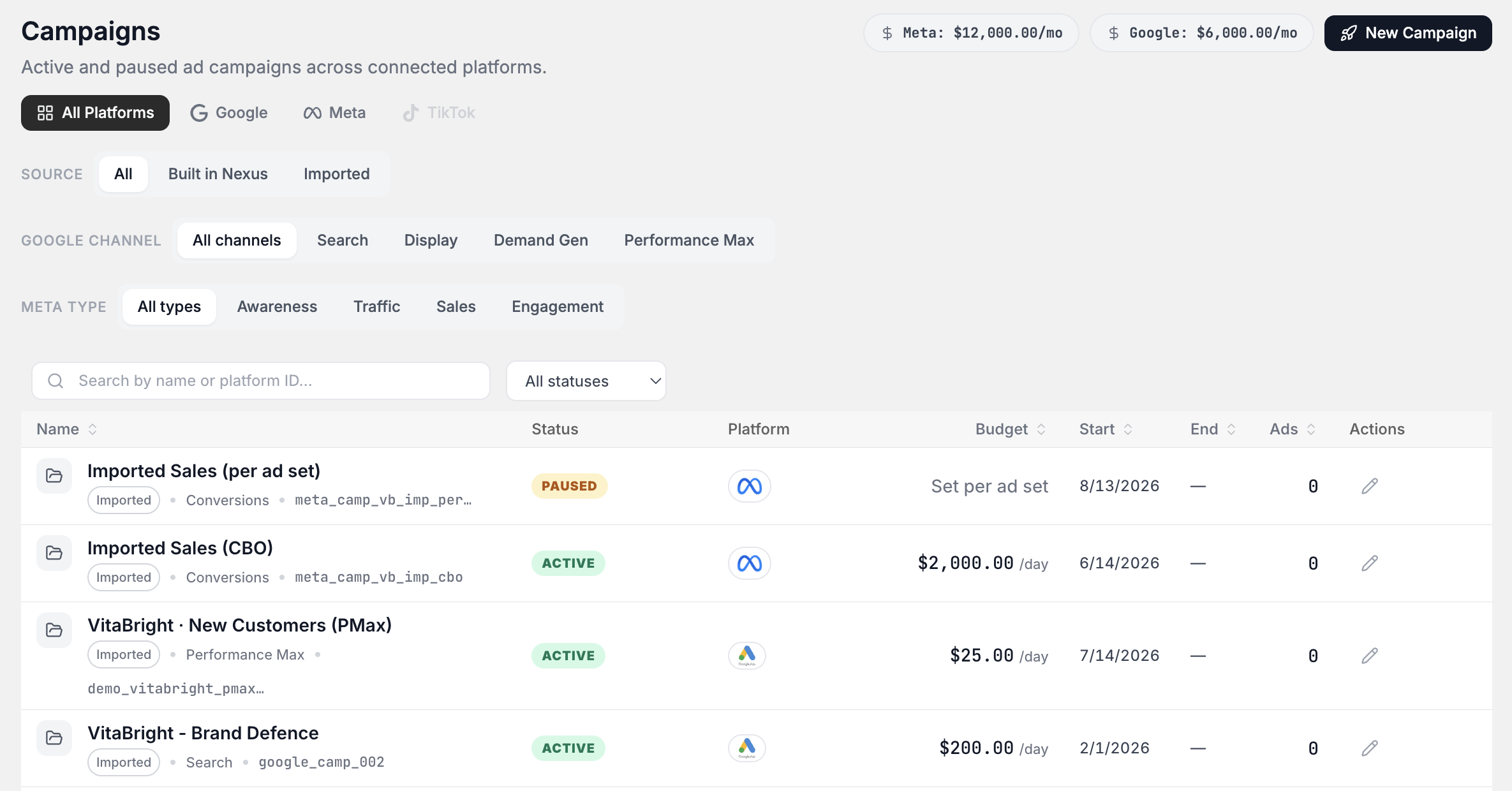
A pill at the top shows the monthly ad budget for each platform that has one, for example Meta: ... /mo. The ad budget you set in Integrations sets the amount.
| Column | What it shows |
|---|---|
| Name | The name and the platform ID. A Commander campaign also shows its objective and strategy. An imported campaign shows Imported and its campaign type. |
| Status | DRAFT, ACTIVE, PAUSED, COMPLETED or ARCHIVED. NO ADS appears beside an active or paused Commander campaign that has no active or paused ads. |
| Platform | The platform icon. A Commander campaign also shows its channel or type. A Google campaign created with a campaign type shows that type from the start. An older Google campaign with no type shows Channel not locked until its first ad deploys, and a Meta campaign shows Type not locked until then. |
| Budget | The daily budget, in the currency of the ad account. A Meta campaign whose budget sits on its ad sets shows the sum of its active and paused ad sets' daily budgets, with Sum of ... ad sets under it; before it has an ad set it shows Budget per ad set (Built in Commander) or Set per ad set (Imported). An Imported Meta campaign with a total (lifetime) budget shows that amount with lifetime. |
| Budget type | Campaign budget (one budget for the campaign) or, on Meta only, Ad set budget (each ad set has its own). Every Google campaign shows Campaign budget. |
| Start and End | The dates. A dash means no date. For a Meta campaign that is on Meta, these are the dates Meta gives the campaign, which Meta works out from its ad sets: Start is the earliest start of every ad set the campaign has had, including deleted and archived ones, and End is the latest ad set end, with no end when an ad set runs without one. The dates show in the time zone of your Meta ad account. An Imported Google campaign shows the start and end dates set in Google Ads. Other campaigns show their scheduled dates. |
| Ads | The number of ads in the campaign. |
| Ad Containers | Meta campaigns show how many ad sets they have, for example "3 ad sets". Google campaigns show how many ad groups they have, for example "2 ad groups", and Performance Max campaigns how many asset groups, for example "1 asset group". Select the arrow icon to open Ad Containers in a new tab, with Campaign set to that campaign. A dash means a campaign with no ad sets, ad groups or asset groups yet, or one that Commander has not read from its ad platform yet. |
| Actions | Edit, pause, resume and archive. |
What to do with it
| What you see | Decision or action | Owner |
|---|---|---|
| DRAFT status, or NO ADS beside a campaign | Deploy an ad into it, or select the archive icon. A campaign a Deploy paused created shows PAUSED, not DRAFT: select the play icon to switch it and its ads on. See Review and deploy ads. | media buyer |
| A platform with no budget pill, or a budget to change | In Settings > Integrations, open the platform's connection and select Set up ad budget or Edit. | ecommerce manager |
| An ACTIVE campaign you want to stop for now | Select the pause icon, then the play icon to resume. | media buyer |
| An Imported campaign | Manage it in Meta Ads Manager or Google Ads, outside Commander. You can still deploy Commander ads into an imported Meta campaign. See Review and deploy ads. | media buyer |
| A campaign whose winners differ from your account definition | Select the pencil, open Winning Ads, then select Add campaign definition. | creative strategist (the person who plans and makes ad creatives) |
Expected value and measurement
This page can help you spot empty or paused campaigns sooner. Your own changes drive any result.
To check it, count the rows with NO ADS on Performance > Campaigns before and after a clean-up. To see how the ads perform, compare Spend and ROAS on Performance > Ad performance for two equal date ranges. Campaign-level results stay in Meta Ads Manager and Google Ads. You cannot isolate one change when budgets, audiences or offers move at the same time.
Limitations and exceptions
- Platforms. You can create campaigns on Meta and Google only.
- Locations. Only a Google campaign has a Locations section, and a Demand Gen campaign has none. Meta keeps its locations on the ad set. If Google cannot be reached, the section shows the locations saved in Commander without a list to edit, and Try again reads the list again.
- Age and gender. Only a Performance Max campaign has Age and Gender in the edit drawer. If Google cannot be reached, the section lists what is saved in Commander without boxes to edit, and Try again reads it again.
- Several changes in one save. On a Google campaign that is already on Google, Commander sends the name first, then the locations, then age and gender, then the budget. If the campaign is a Performance Max one and you changed its business name, logos or sitelinks, Commander sends those first. If Google refuses a later one, the parts it already took stay saved and the message starts with them, for example "The name was saved." Your other changes are not saved.
- Business name, logos and sitelinks. Only a Google Performance Max campaign has them. An imported campaign’s values show read-only on step 4 of the Deployment Wizard, in the rows and their View windows, where Refresh from Google reads them again. Pressed again too soon, it says "Google was read a moment ago. Try again in" followed by the seconds left. The ad sync refreshes them too. Commander does not check whether a name, logo or sitelink uses a trademark you may not use: Google’s rules apply, and Google can disapprove it. A sitelink that links to another site than your store works only for some sites.
- Sync delay. A campaign you create straight on the ad platform appears after the following ad sync.
- Refresh from Google or Meta. If Google Ads or Meta cannot be read, a red message under the button says so, and the campaign keeps the values Commander had. Select the button again later.
- A change made on the ad platform. When you pause, switch on or remove a campaign built in Commander straight in Meta Ads Manager or Google Ads, its Status follows at the following ad sync. A removed or deleted campaign shows ARCHIVED. A DRAFT campaign that is on Meta or Google also follows when you remove it there or switch it on there, even when none of its ads is there yet. Switched on there, it shows ACTIVE even while its ads stay paused: switch them on from the ad page. While it stays paused there, its status does not change.
- Budget set per ad set. An Imported Meta campaign with no budget on the campaign itself shows Set per ad set in Budget. Its ad sets hold the budget, so check it in Meta Ads Manager, outside Commander. An Imported Google campaign with no daily budget shows a Budget of 0 per day. Check the real budget in Google Ads, outside Commander.
- Empty states.
- No campaigns yet with "Create your first campaign to start running ads through Commander." Select New Campaign.
- No campaigns built in Commander yet appears when only the Built in Commander source is on.
- No imported campaigns names the date of the last ad sync. Before the first sync, it says your ad platforms have not synced yet.
- No campaigns match your search, or No ... campaigns for a status, channel or type filter. Select Clear filters.
- No ad budget. The form shows "No budget pool for Meta. Set one up in Integrations first." (or Google). The budget is the one you set with Set up ad budget in the platform's connection panel.
- Failures. If the list fails to load, a red message shows the reason. If a pause, resume or archive fails, a red message appears under the campaign name. A failed archive leaves the campaign unarchived in Commander. Ads and ad sets it already deleted on Meta stay deleted, and its stopped ads can make the campaign show as COMPLETED: select Archive again to finish. If Meta keeps refusing an ad set, the message names it: delete it in Meta Ads Manager, then archive again.
- Archive waits for deploys and changes. Commander does not archive a Meta campaign while an ad is still deploying into it. The message says "An ad is still deploying into this campaign. Archive it once the deploy finishes." If a deploy starts while the archive runs, the archive stops part way and says so. It also waits for a change to the campaign or to one of its ad sets that is still saving, and asks you to try again in a moment. Select Archive again once that finishes.
- Demo Mode. Save in the Edit Campaign drawer, pause, resume and archive change nothing, and no message appears. Refresh from Google and Refresh from Meta read nothing and change nothing. Your unsaved changes stay in the form, and a line under the button says "Demo data: nothing was read from Google." or "Demo data: nothing was read from Meta." New Campaign creates nothing and shows "Disable demo mode to create campaigns." The Winning Ads tab is view-only and says to turn Demo Mode off to edit. Each sample store has one Performance Max campaign built in Commander whose Brand and sitelinks section shows sample values; Save simulates the change and keeps those values. The public demo blocks these actions and shows "This action is not available in the public demo."